How to Switch from QuickBooks to Accounted: Step-by-Step
QuickBooks has been a familiar name in accounting software for decades, but many UK users have found that it does not always feel like it was built with them in mind. If you have been thinking about moving away from QuickBooks, this guide explains exactly how to migrate your data to Accounted without losing a thing.
Why UK Businesses Leave QuickBooks
QuickBooks Online is a global product. Its roots are in North America, and while Intuit has localised it for the UK market, the experience can sometimes feel like a translation rather than a product built from the ground up for British sole traders, landlords and small businesses.
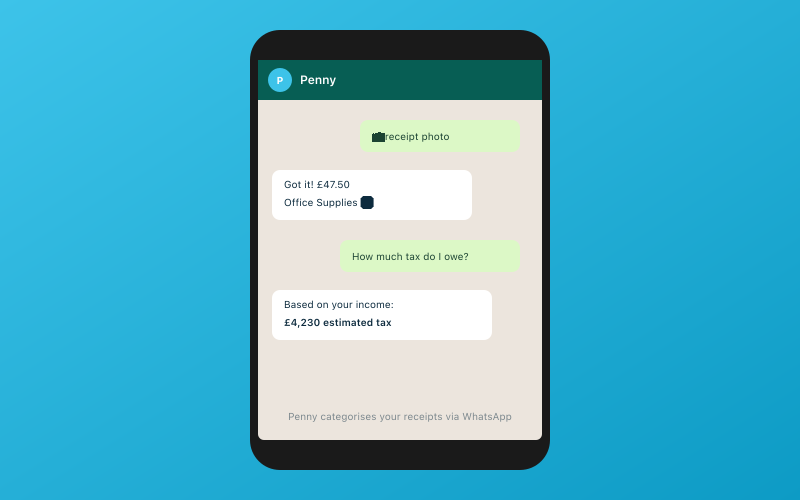 Chat with Penny on WhatsApp — your AI bookkeeper
Here are the issues that come up most often.
Self Assessment Gaps
QuickBooks handles VAT returns reasonably well, but its Self Assessment support is limited. If you are a sole trader, a landlord with rental income, or someone with multiple income sources, you may have found that QuickBooks cannot generate the SA schedules you need. Accounted supports 11 of 13 SA schedules, which covers the vast majority of UK taxpayers.
MTD Readiness
Making Tax Digital for Income Tax is now a reality for many sole traders and landlords. You need software that handles quarterly submissions to HMRC properly. QuickBooks has been slower than some competitors to roll out full MTD for Income Tax support. Accounted is MTD compliant for both VAT and Income Tax, so you are covered on both fronts.
Pricing That Creeps Up
QuickBooks frequently adjusts its pricing, and promotional rates have a habit of expiring at inconvenient times. Accounted starts from £14 per month with transparent pricing and no invoice limits.
UK-Specific Features
Accounted was designed from the start as a UK-native platform. That means CIS support, UK pension tracking, HMRC-compatible VAT and Income Tax submissions, and a Self Assessment engine that understands the nuances of UK tax. You do not have to work around features designed for a different country's tax system.
What You Will Need
Before starting the migration, have the following ready:
- Your QuickBooks Online login details
- Access to your online banking for reconnecting bank feeds
- Your accountant's email address if you want to invite them
- Roughly 30 to 60 minutes
Keep your QuickBooks subscription active for a few weeks after migrating so you can compare figures.
Step 1: Export Your Data from QuickBooks
QuickBooks Online lets you export data from the Reports section and from individual list views. Here is what to export.
Chart of Accounts
Go to Settings > Chart of Accounts and export the list as an Excel or CSV file.
Transaction History
The most thorough way to export transactions is via the General Ledger report. Set the date range to cover your full history, then export as CSV or Excel. This captures every transaction across all accounts.
Alternatively, export individual reports like the Profit and Loss Detail and Balance Sheet Detail for the same period.
Customer and Supplier Lists
Go to Sales > Customers and export the list. Then go to Expenses > Suppliers and do the same.
Outstanding Invoices and Bills
Run the Aged Receivables and Aged Payables reports and export them. You will use these to verify balances after migration.
Bank Transactions
If you want a separate record of bank transactions, go to Banking, select each account and export the transaction list.
Step 2: Import into Accounted
Sign in to Accounted or start a free trial. Go to Settings > Migration and choose QuickBooks as your previous platform.
Accounted's migration engine is designed to read QuickBooks export files and do most of the work automatically. Upload your exported files and the engine will:
- Map your QuickBooks chart of accounts to Accounted categories
- Import your transaction history with dates, amounts, descriptions and categories intact
- Bring across customer and supplier records
- Flag any items that need manual review
The mapping step is where the migration engine saves you the most time. It recognises standard QuickBooks account names and matches them to Accounted equivalents. Where the match is not obvious, it asks for your input rather than guessing.
Once the data is imported, Penny — Accounted's AI bookkeeper — analyses your categorisation history. She learns how you have classified transactions in the past so she can handle future ones in the same way.
Step 3: Verify Your Data
Take the time to check that everything came across correctly.
Opening Balances
Compare your QuickBooks balance sheet on the day of migration with the opening balances in Accounted. They should match. The migration summary will highlight any discrepancies.
Transaction Spot-Checks
Pick three or four months at random and compare the transaction lists between QuickBooks and Accounted. Check that amounts, dates and categories line up.
Category Mapping Review
Scan through the category mapping to make sure nothing was placed in the wrong account. If you spot an error, correct it in Accounted. Penny picks up on corrections and adjusts her future categorisations accordingly.
Outstanding Balances
Compare the Aged Receivables and Aged Payables reports from both platforms. The totals should be identical.
Step 4: Connect Bank Feeds
Head to Banking > Connect Account in Accounted and link your bank accounts via Open Banking. This is the same secure connection standard used across the UK financial sector.
Once connected, new transactions appear automatically. Penny categorises them using the patterns she learned from your QuickBooks history. Most transactions are handled without you needing to lift a finger.
If you had bank feeds connected in QuickBooks, disconnect them once your Accounted feeds are running smoothly to avoid pulling duplicate data.
Step 5: Set Up WhatsApp Receipts
This is something QuickBooks does not offer. With Accounted, you can snap a photo of any receipt and send it to Penny via WhatsApp. She reads the receipt, extracts the details — supplier, amount, date, VAT — and matches it to the corresponding bank transaction.
There is no app to download. If you already use WhatsApp, you are good to go. Link your number under Settings > WhatsApp in Accounted.
For sole traders and small business owners who are constantly on the move, this is one of those features that changes your daily routine. No more shoving receipts in a drawer and dreading the monthly sorting session.
Step 6: Invite Your Accountant
Go to Settings > Accountant Access and enter your accountant's email. Accounted provides a free accountant portal — your accountant does not pay anything to access your books.
The portal gives accountants a dashboard with all their Accounted clients in one place. They can review transactions, run reports, make adjustments and handle tax submissions.
If your accountant previously accessed your QuickBooks via the accountant version, they will find the transition straightforward. The data structures are familiar, and the reporting is designed with accountant workflows in mind.
Step 7: Keep QuickBooks Running Briefly, Then Cancel
Run both platforms side by side for a couple of weeks. Once you are confident that your data is correct, bank feeds are flowing and Penny is categorising accurately, you can cancel QuickBooks.
Before you cancel, download a final data export from QuickBooks for your records. HMRC requires you to keep financial records for at least five years (six for some circumstances), so having a backup is good practice regardless.
Frequently Asked Questions
Can I migrate in the middle of a VAT period?
Yes. Accounted handles mid-period migrations cleanly. Your VAT return figures will be accurate.
What about payroll data?
If you use QuickBooks payroll, you will need to handle payroll migration separately. Contact the Accounted support team for guidance on bringing payroll records across.
Is there a data limit on migration?
No. Whether you have six months or six years of history, the migration engine processes it all.
Will my accountant need training on Accounted?
Most accountants find Accounted intuitive. The accountant portal is designed to be self-explanatory, and Accounted provides onboarding resources specifically for accounting professionals.
Make the Move Today
Switching from QuickBooks to Accounted is simpler than you might think, and most UK businesses find they get better Self Assessment coverage, easier receipt management and lower costs from day one. Start your free trial of Accounted, run the migration engine, and let Penny handle the bookkeeping while you get on with running your business.
Related Reading
- Best CIS Software for Construction Businesses in 2026
- Can AI Really Do Your Bookkeeping? We Built One to Find Out
Start your free trial and see how Accounted simplifies your bookkeeping.
Editorial & Research
The Accounted editorial team covers software comparisons, technology, and the tools UK sole traders need to run their businesses efficiently. All software comparisons are based on independent research and publicly available pricing.
Ready to try Accounted?
Join UK sole traders who are simplifying their bookkeeping and tax.
Start your 14-day free trial