How to Switch from Xero to Accounted (Step-by-Step)
Why People Switch from Xero to Accounted
Xero is a solid product. But it was built for businesses with accountants. Accounted was built for people who want to do their own bookkeeping without needing one.
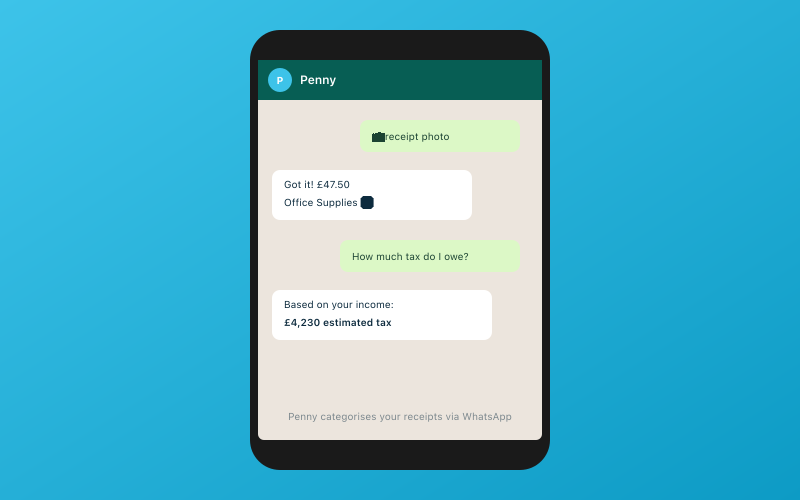 Chat with Penny on WhatsApp — your AI bookkeeper
The most common reasons we hear:
- Cost. Xero's Growing plan (which most sole traders need) costs significantly more than Accounted. Our pricing is straightforward — one plan, everything included.
- Complexity. Xero has hundreds of features for larger businesses. If you're a sole trader, most of that is noise.
- MTD compliance. Accounted was built from the ground up for Making Tax Digital. Xero bolted MTD on later.
- AI categorisation. Penny learns your business patterns and categorises transactions automatically, unlike Xero's manual rules engine.
- WhatsApp receipts. Snap a receipt, send it via WhatsApp. No app switching.
For a feature-by-feature comparison, see our Accounted vs Xero breakdown.
What Gets Migrated
Our API-based migration tool connects directly to your Xero account and brings across:
- Chart of accounts — your account structure transfers directly
- Trial balance — we guarantee your opening balances match exactly
- Bank transactions — full history for the current tax year
- Invoices — sent and received, with payment status
- Contacts — your customer and supplier list
- Receipts and documents — anything attached to transactions
What Doesn't Transfer
- Xero Projects data (Accounted doesn't have project tracking)
- Payroll history (export as CSV for your records)
- Custom report templates
- Multi-currency transactions (Accounted is UK-only, GBP)
The Migration Process
The whole process takes about 15 minutes of your time, though data transfer runs in the background for up to an hour.
Step 1: Sign Up
Head to accounted.app/signup. No credit card needed — the free trial includes the migration tool.
Step 2: Connect Xero
From Settings → Migration → Xero, authorise read-only access. We never modify anything in your Xero account.
Step 3: Choose What to Migrate
Select from your chart of accounts, trial balance, current year transactions, contacts, and outstanding invoices. Most people select everything.
Step 4: Review the Trial Balance
Our trial balance guarantee shows you a side-by-side comparison before importing. Every number must match to the penny. If something looks off, our support team investigates before proceeding.
Step 5: Confirm and Migrate
Hit the button and let it run. You'll get a progress bar and email notification on completion.
Step 6: Reconnect Bank Feeds
Connect your bank accounts through Open Banking via TrueLayer — about two minutes per account.
What to Expect in Your First Week
Day 1: Your data is in, your bank is connected, and Penny is already learning from your imported categorisation history. Spend 10 minutes exploring the dashboard — it's deliberately simpler than Xero's.
Days 2–3: As new transactions come in, Penny categorises them based on your history. You might correct a few things — each correction makes Penny more accurate.
Days 4–7: Most switchers report spending significantly less time on bookkeeping than they were with Xero. The combination of AI categorisation and WhatsApp receipt capture means the daily admin drops to almost nothing. If you're in the MTD bracket, your quarterly submissions are set up automatically based on the tax year — no configuration needed.
By the end of week one, you should feel comfortable with the dashboard, confident that Penny is categorising accurately, and able to see your real-time tax position at a glance.
Running Both in Parallel
We recommend keeping your Xero subscription active for at least one month after migrating. This gives you a safety net while you verify everything is working correctly in Accounted. Just make sure you're entering new transactions in Accounted only — running dual data entry defeats the purpose and creates confusion.
Once you're confident everything is right, cancel your Xero subscription. Xero lets you export your full data as a CSV before closing the account, which is worth doing for your records. You won't lose access to your Xero data immediately — Xero typically keeps read-only access available for a period after cancellation.
Common Questions
Will my accountant have access? Yes. Accounted has a dedicated accountant portal with free access for viewing books, leaving notes, and reviewing your tax position.
Can I go back to Xero? Absolutely. Export everything from Accounted at any time.
Is there a migration cost? No. The migration tool is free with every account, including during your trial.
Get Started with Accounted
Our API-based migration makes switching genuinely painless. Your trial balance is guaranteed to match, your history comes across, and Penny starts learning from day one. Start your free trial today — no credit card required.
Related Reading
Editorial & Research
The Accounted editorial team covers software comparisons, technology, and the tools UK sole traders need to run their businesses efficiently. All software comparisons are based on independent research and publicly available pricing.
Ready to try Accounted?
Join UK sole traders who are simplifying their bookkeeping and tax.
Start your 14-day free trial