How to Export Your Data From Xero
Whether you're switching to a different accounting platform, backing up your records, or your accountant has asked for a data dump, knowing how to get your data out of Xero is important. Xero holds a lot of information — bank transactions, invoices, contacts, receipts, reports — and extracting it all isn't always as intuitive as you'd hope.
This guide walks through every type of data you might want to export from Xero, with practical instructions for each. If you're thinking of moving to another platform, this is the essential first step. And if you just want a backup for peace of mind, that's a perfectly valid reason too.
Why You Might Want to Export Your Xero Data
There are several legitimate reasons to pull your data out of Xero:
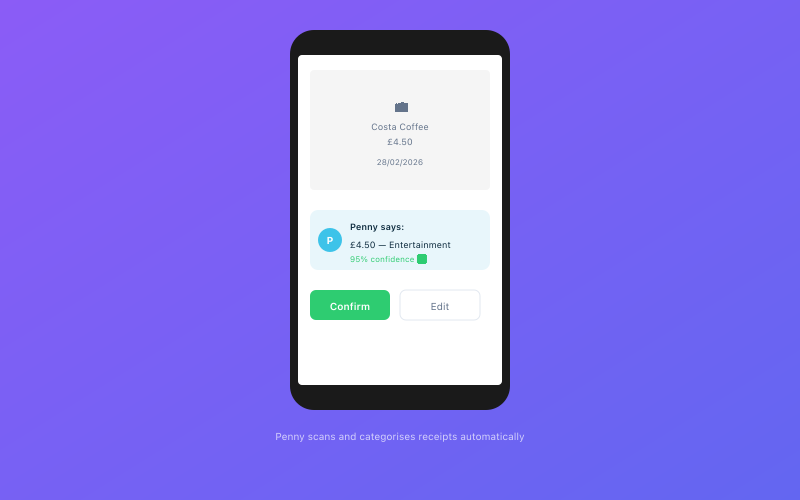 Penny scans and categorises your receipts automatically via WhatsApp
You're switching software. Maybe Xero's gotten too expensive (it has), too complicated for your needs, or you've found something better suited to your business. Whatever the reason, you'll want your data before you cancel. If you're considering alternatives, our Xero alternatives guide for UK users covers the main options.
You're backing up your records. HMRC requires you to keep business records for at least five years. While Xero stores your data for as long as you're a subscriber, what happens if you cancel? Or if Xero has an outage? Having an independent backup is sensible.
Your accountant needs it. Some accountants prefer to work with raw data in their own systems. They may ask you to export specific reports or transaction lists.
You're changing accountants. If you're moving to a new accountant, they'll want access to your historical data. Exporting gives them what they need without relying on Xero permissions.
You want to analyse your data elsewhere. Sometimes a spreadsheet or business intelligence tool is better for specific analysis. Exporting your data as CSV files lets you slice and dice it however you like.
Exporting Bank Transactions
Your bank transaction history is probably the most important data in Xero. Here's how to get it out:
- Go to Accounting > Bank Accounts.
- Click on the bank account you want to export.
- Click on Account Transactions (the statement lines tab).
- Set your date range — go as wide as you need to. For a full backup, use the earliest and latest dates available.
- Click Export (usually a CSV or Excel option).
This gives you a file with dates, descriptions, amounts, and categories for every transaction in that bank account. If you have multiple bank accounts in Xero, repeat this for each one.
Important note: Xero's bank transaction export includes the reconciled data (i.e., the categorised, matched version), not just the raw bank feed. This means you're getting the processed data, which is more useful for most purposes.
Exporting Invoices
If you use Xero for invoicing, you'll want to export both your sales invoices and any purchase bills.
Sales invoices:
- Go to Business > Invoices.
- Use the filters to select the date range and status (all, paid, unpaid, etc.).
- Click Export to download as a CSV file.
This export includes invoice numbers, dates, client names, amounts, tax, and payment status. It doesn't include the actual PDF invoices, though — for those, you'll need to download them individually or use Xero's bulk PDF export if available on your plan.
Purchase bills:
- Go to Business > Bills to Pay.
- Filter by date range and status.
- Export as CSV.
The same limitations apply — you get the data, but individual bill attachments need to be downloaded separately.
Exporting Contacts
Your customer and supplier list is valuable, especially if you're moving to new software and want to avoid retyping everything.
- Go to Contacts > All Contacts.
- Click Export.
- Choose CSV format.
This export includes names, email addresses, phone numbers, billing addresses, and any custom fields you've set up. It's typically a clean file that imports easily into other platforms.
Exporting Reports
Xero generates a variety of financial reports, and you'll want copies of the key ones:
Profit and Loss (Income Statement):
- Go to Accounting > Reports > Profit and Loss.
- Set your date range (typically the full tax year, 6 April to 5 April).
- Click Export and choose between PDF, Excel, or Google Sheets.
Balance Sheet:
- Same path — Accounting > Reports > Balance Sheet.
- Set your date as the period end.
- Export as PDF or Excel.
Trial Balance:
- Accounting > Reports > Trial Balance.
- Choose your date.
- Export.
VAT Returns: If you've been submitting VAT through Xero, go to Accounting > Reports > VAT Returns and download copies of each submitted return. These are particularly important to keep — HMRC expects you to have them available.
Other useful reports to export:
- Aged Receivables (who owes you money)
- Aged Payables (who you owe money to)
- General Ledger (detailed transaction listing by account)
- Tax Summary (useful for Self Assessment)
Exporting Receipts and Attachments
This is where things get frustrating. Xero stores receipts and file attachments against individual transactions, invoices, and bills. Unfortunately, there's no built-in bulk download feature for all attachments.
Your options are:
Manual download. Go through each transaction or invoice, open the attachment, and download it. This is painfully slow if you have hundreds of receipts, but it works.
Xero API. If you're technically inclined (or your accountant is), the Xero API allows programmatic access to attachments. You can write a script to download all files in bulk. This requires some development knowledge but is by far the most efficient method for large datasets.
Third-party tools. Some third-party migration tools can extract attachments from Xero. Search for "Xero data export tools" and you'll find a few options, though be careful about granting API access to unfamiliar providers.
Going forward, if you switch to Accounted, receipt management is handled through Penny — the AI bookkeeper on WhatsApp. You simply photograph a receipt and send it. Penny extracts the details, categorises the expense, and stores the image against the transaction. No more hunting through Xero's attachment system.
Exporting Your Chart of Accounts
Your chart of accounts defines how your transactions are categorised. If you're moving to new software, having this exported helps you map your old categories to new ones.
- Go to Accounting > Chart of Accounts.
- Click Export (CSV format).
This gives you every account code, name, and type. It's useful reference material, even if your new software uses a different structure.
Using Xero's Data Export Feature
Xero has a somewhat hidden feature that lets you request a complete export of your organisation's data:
- Go to Settings > General Settings > Export Data (under the Advanced section).
- Select which data you want to export (you can typically choose everything).
- Xero will compile your data and email you a download link.
This export includes transactions, contacts, invoices, and other core data in CSV format. It's not always perfectly formatted for importing into another system, but it's comprehensive and serves as a solid backup.
Note: This feature may not be available on all Xero plans. If you can't find it, contact Xero support or use the individual export methods described above.
What to Do After Exporting
Once you've got your data out, here's what to do with it:
Store it securely. Upload everything to a cloud drive (Google Drive, Dropbox, OneDrive) and keep a local copy too. Label folders clearly by tax year. HMRC requires five years of records, so keep everything for at least that long.
Verify the exports. Open a few CSV files and spot-check the data. Make sure dates look correct, amounts are right, and nothing seems truncated or garbled. Better to catch issues now while you still have access to Xero.
Set up your new software. If you're moving to Accounted, the setup process is quick — sign up, connect your bank via Open Banking, and your transactions start flowing in automatically. For a detailed migration guide, see our switching from Xero guide.
Don't cancel Xero immediately. Keep your subscription active for at least a month after you've switched. This gives you time to cross-reference figures, download anything you missed, and confirm that your new system is working correctly. Once you're confident, cancel.
A Note on Xero's Cancellation Process
When you cancel Xero, your data isn't deleted immediately. Xero typically retains your data for a period after cancellation (check their current terms for the exact duration). However, you won't be able to access it through the normal interface — you'd need to resubscribe.
This is why exporting before cancellation is so important. Don't assume you can come back and get things later. Get it all out while you have full access.
If Xero's pricing has been the trigger for your move, you're not alone — our article on the true cost of Xero explains why so many sole traders are reconsidering. And if your accountant is the one pushing for a switch, the reasons accountants are leaving Xero might resonate.
Your Data Belongs to You
It's easy to forget, but the data in your Xero account is yours. You generated it, you entered it, and you have every right to take it with you. Don't let the inconvenience of exporting be the reason you stay on a platform that no longer serves you well.
The export process takes an afternoon at most. Once it's done, you'll have a complete backup of your financial records and the freedom to move wherever suits you best.
Accounted helps UK sole traders stay on top of their bookkeeping and tax. Start your free 30-day trial at getaccounted.co.uk
Related reading:
- Switching From Xero — Complete Guide
- Xero Alternatives for UK Users in 2026
- The True Cost of Xero — Hidden Fees and Add-Ons
Related Reading
- Coconut App Review — Is It Worth It in 2026?
- QuickBooks Alternatives for UK Businesses
- TaxCalc vs Accounted — Detailed Comparison
Compare Accounted with other platforms and start your free trial.
See how Accounted compares to Xero, Sage, QuickBooks and more — and why sole traders are switching. See the full comparison →
Editorial & Research
The Accounted editorial team covers software comparisons, technology, and the tools UK sole traders need to run their businesses efficiently. All software comparisons are based on independent research and publicly available pricing.
Ready to try Accounted?
Join UK sole traders who are simplifying their bookkeeping and tax.
Start your 14-day free trial