How to Switch from Xero to Accounted: Complete Migration Guide
Switching accounting software can feel daunting. You have months or years of financial data, bank rules, contacts and invoices sitting in Xero, and the thought of moving it all somewhere new is enough to make anyone postpone the decision indefinitely.
The good news is that moving from Xero to Accounted is far simpler than you might expect. Our migration engine handles the heavy lifting, and most businesses complete the switch in under an hour of active work.
This guide walks you through every step.
Why People Switch from Xero
Before we get into the how, it helps to understand the common reasons people leave Xero. These tend to fall into a few categories.
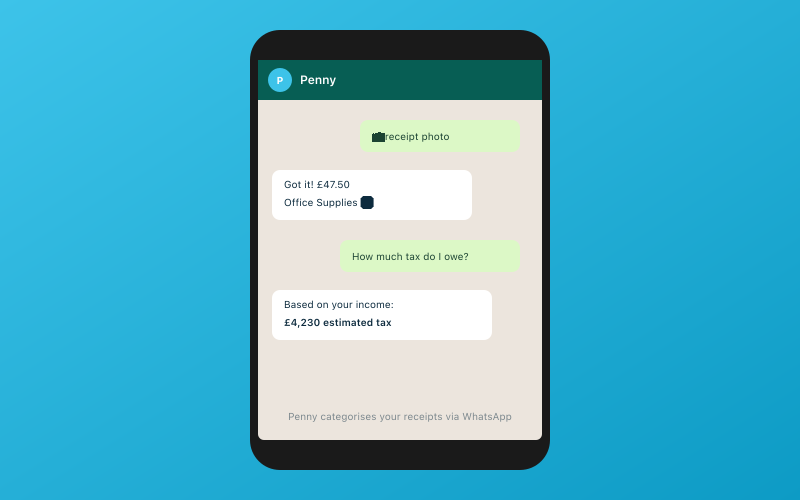 Chat with Penny on WhatsApp — your AI bookkeeper
Cost. Xero's pricing has increased steadily over the years. The Starter plan limits the number of invoices you can send, and the Growing plan — which most sole traders and small businesses actually need — costs significantly more than comparable alternatives. Accounted starts from just £14 per month with no invoice limits.
Complexity. Xero was built to serve businesses of all sizes across multiple countries. That means there are features, menus and settings that many UK sole traders and small businesses will never touch. If you find yourself lost in Xero's interface, you are not alone.
Self Assessment support. Xero handles VAT returns well, but its Self Assessment support is limited. Accounted supports 11 of 13 SA schedules, covering the vast majority of sole traders, landlords and partnerships.
MTD compliance. With Making Tax Digital for Income Tax arriving for many taxpayers, you need software that handles quarterly submissions properly. Accounted is fully MTD compliant for both VAT and Income Tax.
Before You Start: What You Will Need
Gather these before beginning the migration:
- Your Xero login credentials
- Access to your online banking (to reconnect bank feeds)
- Your accountant's email address (if you want to invite them to your new Accounted account)
- About 30 to 60 minutes of uninterrupted time
You do not need to cancel your Xero subscription immediately. We recommend keeping it active for a few weeks after migrating so you can cross-reference figures if needed.
Step 1: Export Your Data from Xero
Xero allows you to export your financial data in several ways. For a clean migration, you will want to export the following.
Chart of Accounts
Go to Accounting > Chart of Accounts in Xero. Click Export to download your chart of accounts as a CSV file. This gives Accounted the structure of your bookkeeping categories.
Bank Transactions
Navigate to each bank account in Xero and export the transaction history. Go to Accounting > Bank Accounts, select the account, then use the Account Transactions report to export as CSV. Repeat for each bank account and credit card.
Contacts
Go to Contacts > All Contacts and use the export function. This ensures your customer and supplier records come across.
Invoices and Bills
Export your sales invoices and purchase bills from the relevant sections. Xero lets you export lists as CSV files from most report views.
Aged Reports
Run and export your Aged Receivables and Aged Payables reports. These help verify that outstanding balances match after migration.
Step 2: Import into Accounted
This is where the migration engine earns its keep.
Log in to your Accounted account (or sign up for a free trial if you have not already). Head to Settings > Migration and select Xero as your source platform.
You will see a guided upload screen. Drop in the CSV files you exported from Xero. The migration engine reads your data, maps your Xero categories to Accounted's chart of accounts, and imports your transaction history.
For most businesses, the mapping is automatic. The engine recognises standard Xero account names and matches them to the correct Accounted categories. Where it cannot find a confident match, it flags the item for your review and suggests the most likely option.
Penny, Accounted's AI bookkeeper, learns from your imported data. She picks up on your categorisation patterns so that future transactions are handled the same way you have always done them.
Step 3: Verify Your Data
Once the import completes, take some time to verify everything looks right.
Check Opening Balances
Compare your Xero balance sheet on the migration date with the opening balances in Accounted. The figures should match. If anything is off, the migration summary highlights discrepancies for you to review.
Spot-Check Transactions
Pick a handful of recent months and compare the transaction lists in both platforms. Look at a few invoices, expense claims and bank transactions to confirm they have come across correctly.
Review the Category Mapping
Glance through the mapped categories to make sure nothing ended up in the wrong place. If a few transactions were miscategorised during import, you can correct them individually and Penny will learn from the adjustment.
Step 4: Connect Your Bank Feeds
Accounted connects to UK banks through Open Banking, the same secure standard used across the industry. Head to Banking > Connect Account and follow the prompts to link your current account, savings account or business credit card.
Once connected, new transactions flow in automatically. Penny categorises them based on the patterns she learned from your Xero history, so you should find that most transactions are handled without any input from you.
If you were using Xero's bank feed, you may want to disconnect it from Xero once your Accounted feeds are running smoothly. This avoids confusion from having both platforms pulling from the same bank.
Step 5: Invite Your Accountant
If you work with an accountant or bookkeeper, invite them to your Accounted account. Go to Settings > Accountant Access and enter their email address.
Accounted offers a free accountant portal, so your accountant pays nothing to access your books. They get a dedicated dashboard showing all their clients who use Accounted, which many accountants find tidier than managing separate logins across multiple platforms.
Your accountant can review transactions, run reports, make adjustments and submit tax returns directly from the portal.
Step 6: Set Up WhatsApp Receipt Scanning
One of the features Xero does not offer is receipt scanning via WhatsApp. With Accounted, you simply photograph a receipt and send it to Penny on WhatsApp. She reads the receipt, extracts the supplier name, amount, date and VAT, and matches it to the right transaction.
No app download is needed. If you have WhatsApp on your phone — and most people do — you are ready to go. Set this up by going to Settings > WhatsApp and following the linking instructions.
Step 7: Cancel Xero When You Are Ready
We suggest running both platforms in parallel for two to four weeks. Once you are satisfied that everything in Accounted is correct and your bank feeds are working, you can cancel your Xero subscription.
Before cancelling, download a final backup from Xero for your records. Go to Settings > Export Accounting Data and save the file somewhere safe.
Common Questions
Will I lose any historical data?
No. The migration engine imports your full transaction history. You can run reports on past periods just as you did in Xero.
How long does the migration take?
The export from Xero takes about 15 minutes. The import into Accounted is usually done within a few minutes depending on data volume. Verification takes as long as you want it to — a quick spot-check can be done in 10 minutes.
What if something goes wrong?
You can re-run the migration or manually adjust any transactions. Accounted's support team is available to help with tricky migrations, and Penny flags anything that looks unusual during the import.
Can I migrate mid-year?
Yes. Many people switch partway through the tax year. Accounted handles the transition cleanly, so your year-end figures and tax returns are unaffected.
Ready to Make the Switch?
Moving from Xero to Accounted is straightforward, and most businesses wish they had done it sooner. Start your free trial of Accounted today, run the migration engine, and let Penny take over the routine bookkeeping so you can focus on your business.
Related Reading
Start your free trial and see how Accounted simplifies your bookkeeping.
Editorial & Research
The Accounted editorial team covers software comparisons, technology, and the tools UK sole traders need to run their businesses efficiently. All software comparisons are based on independent research and publicly available pricing.
Ready to try Accounted?
Join UK sole traders who are simplifying their bookkeeping and tax.
Start your 14-day free trial