How to Switch from Sage to Accounted: Modern Bookkeeping Migration
Sage has been part of UK bookkeeping for longer than most business owners can remember. If you started your business in the 2000s or even the 1990s, there is a reasonable chance your first accounting software was Sage 50 installed from a CD-ROM.
Times have changed. Many Sage users are now looking at cloud-based alternatives, whether because HMRC's Making Tax Digital rules require digital submissions, because they want to access their books from anywhere, or simply because the software has become harder to justify on cost.
This guide covers how to move from Sage — desktop or cloud — to Accounted, step by step.
Why Sage Users Are Moving On
The Desktop Problem
 Chat with Penny on WhatsApp — your AI bookkeeper
If you are still using Sage 50 or Sage Instant Accounts, you are running software that sits on a single computer. That means:
- Your data is only accessible from that machine (unless you have set up a complicated network)
- Backups are your responsibility
- Software updates require manual installation
- Your accountant cannot access your books remotely without workarounds
- Working on the go is essentially impossible
Cloud bookkeeping solves all of these problems at once.
MTD Compliance
Making Tax Digital for VAT has been in force for some time, and MTD for Income Tax is now rolling out. While Sage does offer MTD-compatible options, many users on older versions find that compliance requires upgrading to a more expensive Sage plan or bolting on additional software.
Accounted is MTD compliant for both VAT and Income Tax as standard. There are no add-ons to buy or upgrades to navigate.
Cost and Complexity
Sage's pricing structure can be confusing, with different tiers, add-on modules and per-user charges. Accounted starts from £14 per month with a straightforward pricing model. What you see is what you pay.
UK-Native Design
Accounted was built specifically for the UK from the start. Self Assessment support covers 11 of 13 SA schedules, the VAT engine handles all the common UK schemes, and the entire platform uses UK terminology and conventions. There is no need to mentally translate American accounting terms.
Before You Begin
Get these ready:
- Access to your Sage software (desktop or cloud login)
- Your online banking details for reconnecting bank feeds
- Your accountant's email address
- About 30 to 60 minutes, possibly longer if you are on Sage desktop with many years of data
Keep your Sage subscription or licence active for a few weeks after migrating.
Step 1: Export Your Data from Sage
The export process differs depending on which version of Sage you are using.
Sage 50 Desktop
Open Sage 50 and use the File > Export function. You will want to export:
- Nominal Ledger (your chart of accounts and transaction history)
- Customer Records and Supplier Records
- Bank Transactions for each bank account
- Outstanding Sales Invoices and Outstanding Purchase Invoices
Sage 50 exports data as CSV files. Make sure you set the date range to cover your full trading history, or at least the current and previous tax year.
Also run and export your Trial Balance, Aged Debtors and Aged Creditors reports. You will use these for verification later.
Sage Cloud (Sage Business Cloud Accounting)
If you use Sage's cloud product, the export options are in Settings > Export Data or available through individual report screens. Export:
- Chart of accounts
- Transaction reports (General Ledger or Detailed Nominal Activity)
- Customer and supplier lists
- Aged receivables and payables
Export everything as CSV or Excel files.
Step 2: Import into Accounted
Log in to your Accounted account or start a free trial. Navigate to Settings > Migration and select Sage as your source platform.
Upload your exported CSV files. Accounted's migration engine reads the Sage data format and maps your nominal codes to Accounted categories. Sage uses a numbered nominal code system (for example, 4000 for Sales, 7100 for Rent), and the migration engine recognises these standard codes and maps them automatically.
Where a code is custom or unusual, the engine flags it for your review and suggests the most likely match. You choose the correct category, and the import continues.
The entire process takes a few minutes for most businesses. If you have decades of transaction history, it might take a little longer, but the process is the same.
What Penny Learns from Your Sage Data
Once the import finishes, Penny — Accounted's AI bookkeeper — analyses your historical transactions. She looks at how you categorised expenses and income in Sage and uses those patterns to categorise future transactions automatically.
This is particularly helpful for Sage users who had detailed, well-maintained books. All that careful categorisation work you did over the years is not wasted. It becomes the foundation for Penny's learning.
Step 3: Verify Your Data
Verification is important with any migration, and especially so when moving from desktop software where data formats can vary.
Trial Balance Comparison
Compare the Trial Balance you exported from Sage with the Trial Balance in Accounted on the same date. Every account should show the same balance. If anything is off, the migration summary in Accounted highlights the discrepancy.
Transaction Spot-Checks
Pick a few months across different years and compare individual transactions. Check amounts, dates, categories and VAT treatment.
Outstanding Balances
Compare your Aged Debtors and Aged Creditors from Sage with the equivalent reports in Accounted. The totals should match.
VAT Reconciliation
If you are VAT registered, compare the VAT figures for the most recent complete period. This gives you confidence that your next VAT return will be accurate.
Step 4: Connect Bank Feeds
This is where cloud bookkeeping really shines compared to Sage desktop. In Accounted, go to Banking > Connect Account and link your bank via Open Banking.
If you were manually importing bank statements into Sage 50 — downloading CSV files from your bank and uploading them — you will appreciate how different this is. Transactions arrive automatically, usually within a few hours of appearing in your bank account.
Penny categorises incoming transactions using the patterns from your Sage history. Most transactions are handled without any input from you.
Step 5: Discover WhatsApp Receipt Scanning
One of the biggest changes moving from Sage to Accounted is receipt management. If you are used to filing paper receipts or manually attaching scanned images in Sage, this will feel like a step change.
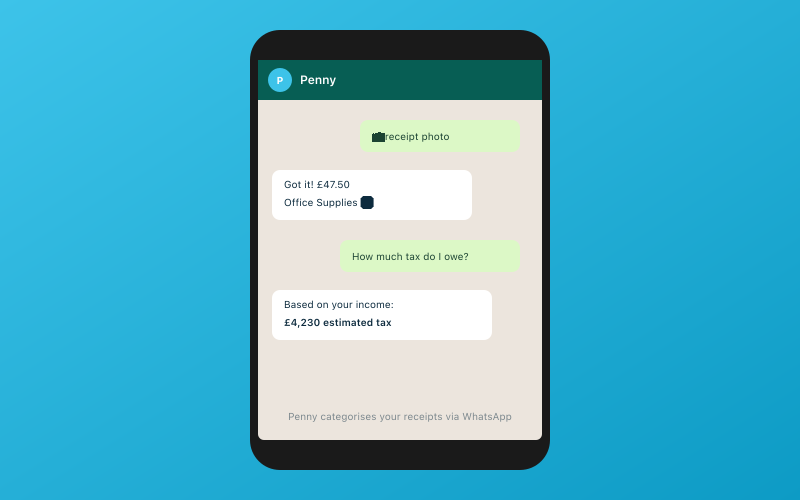
With Accounted, you photograph a receipt with your phone and send it to Penny on WhatsApp. She reads it, pulls out the supplier name, amount, date and VAT, and matches it to the right bank transaction. There is no separate app to download. If you have WhatsApp, you are ready.
For tradespeople, contractors and anyone else who accumulates receipts throughout the day, this feature alone can save hours each month.
Step 6: Invite Your Accountant
Go to Settings > Accountant Access and add your accountant's email. The Accounted accountant portal is free — your accountant pays nothing to access it.
If your accountant previously accessed your books by having you email a Sage backup file or by remoting into your desktop, the change will be welcome. They get real-time access to your books from anywhere, with a clean dashboard showing all their Accounted clients.
Step 7: Get Comfortable, Then Cancel Sage
Run both systems for two to four weeks. Use this time to make sure your bank feeds are working, Penny's categorisations are accurate, and your accountant is happy with the setup.
Once you are satisfied, cancel your Sage subscription or stop renewing your desktop licence. Keep your final Sage backup file stored safely — HMRC requires financial records to be kept for at least five years.
The Learning Curve
One of the biggest concerns for long-time Sage users is learning something new. This is understandable. You have spent years building familiarity with Sage's interface.
Accounted is deliberately simpler. There are fewer menus, fewer options and fewer places where things can go wrong. Penny handles the bulk of routine bookkeeping, so you spend less time in the software overall.
Most Sage users tell us that after a week or two, they wonder why they did not switch sooner. The concepts are the same — debits, credits, categories, bank reconciliation. The execution is just smoother.
Start Your Free Trial
Moving from Sage to Accounted is a chance to modernise your bookkeeping without losing your financial history. Start your free trial today, let the migration engine bring your Sage data across, and hand the routine work to Penny. You have spent long enough doing bookkeeping the hard way.
Related Reading
- Best CIS Software for Construction Businesses in 2026
- How to Switch from Xero to Accounted: Complete Migration Guide
Start your free trial and see how Accounted simplifies your bookkeeping.
Editorial & Research
The Accounted editorial team covers software comparisons, technology, and the tools UK sole traders need to run their businesses efficiently. All software comparisons are based on independent research and publicly available pricing.
Ready to try Accounted?
Join UK sole traders who are simplifying their bookkeeping and tax.
Start your 14-day free trial