How to Sign Up for MTD: Step-by-Step Guide
Let's Get You Signed Up
Signing up for Making Tax Digital for Income Tax sounds like it should be straightforward. And honestly, it mostly is — once you know what to expect. The problem is that HMRC's guidance can be dense, the terminology is confusing, and it's not always obvious what order to do things in.
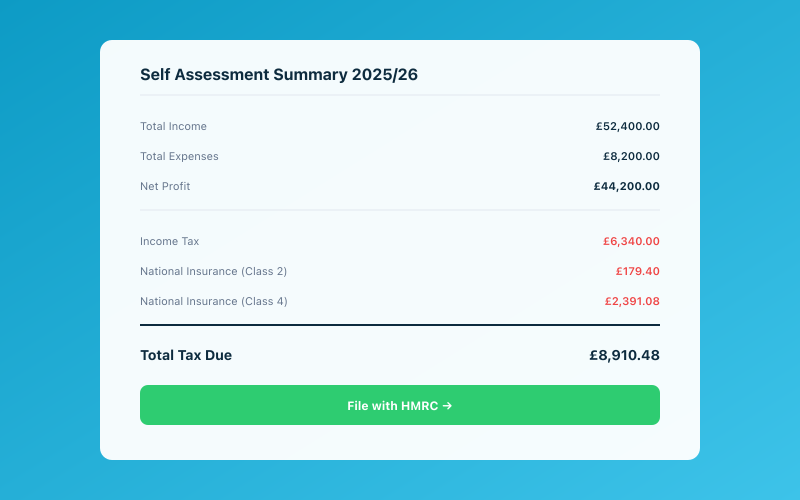 Your Accounted dashboard shows your real-time tax position
This guide walks you through the entire process in plain English. No jargon, no assumptions, no skipped steps. By the end, you'll be signed up, your software will be authorised, and you'll be ready to start your first quarterly submission.
Before You Start: What You'll Need
Make sure you have these four things ready:
-
A Government Gateway account — HMRC's online login system. If you've ever filed Self Assessment online, you probably have one. If not, create one at gov.uk. Already have one? Check you can still log in — reset your password now rather than when you're mid-sign-up.
-
Your Unique Taxpayer Reference (UTR) — the 10-digit number HMRC assigned when you registered for Self Assessment. Find it on old tax returns, HMRC letters, or in your online account. If you've never registered, do that first — HMRC can take weeks to send your UTR by post.
-
Your National Insurance number — found on payslips, your P60, or any HMRC letter (format: AB 12 34 56 C).
-
MTD-compatible software — you'll need to authorise it during sign-up, so choose your tool first.
Step-by-Step: Signing Up for MTD for Income Tax
Here's the process, broken down into manageable steps:
Step 1: Check You're Eligible (or Required)
First, confirm whether you need to sign up. For the 2026/27 tax year, you must sign up if your gross self-employment or property income exceeds £50,000. From April 2027, the threshold drops to £30,000.
Even if you're below the threshold, you can sign up voluntarily. There are good reasons to do this, including better financial visibility and getting comfortable with the system before it's mandatory.
Step 2: Go to HMRC's MTD Sign-Up Page
Navigate to HMRC's dedicated MTD for Income Tax sign-up service. You'll find it by searching "sign up for Making Tax Digital for Income Tax" on GOV.UK, or your software provider may include a direct link.
The page will ask you to sign in with your Government Gateway credentials. Do that.
Step 3: Confirm Your Identity
HMRC will verify your identity using your Government Gateway account. If it's already linked to your Self Assessment record, this happens automatically. Otherwise, you'll enter your UTR and National Insurance number. If HMRC can't match your details, check your name matches exactly, your UTR is correct, and your NI number has no spaces.
Step 4: Review Your Details and Agree to Terms
HMRC shows the information they hold — your name, UTR, and known income sources. Check it's correct, then confirm you understand the MTD requirements: digital records and quarterly updates.
Step 5: Authorise Your Software
This is the step that confuses people most, but it's straightforward. HMRC uses OAuth — the same technology behind "Sign in with Google" — to let your software access your tax data:
- Your software sends you to HMRC. Click "Connect to HMRC" in your software and you're redirected to an HMRC page.
- You log in to Government Gateway. Enter your credentials on HMRC's page — your software never sees your password.
- You grant permission. HMRC asks you to confirm your software can access your MTD data. You approve.
- You're redirected back. HMRC gives your software a secure token to communicate on your behalf. It refreshes automatically.
The whole process takes about 30 seconds. You do it once, and your software handles the connection going forward.
Step 6: You're Done
Once authorised, you're signed up. You should receive on-screen confirmation from HMRC.
Testing Your Connection
After signing up, it's worth doing a quick sanity check:
-
Check your obligations. Your software should now be able to retrieve your MTD obligations from HMRC — these are the dates by which your quarterly updates and final declaration are due. If you can see them, the connection is working.
-
Review your software dashboard. You should see your upcoming deadlines and the current quarter you need to be tracking.
If your software shows an error or can't connect, the most common causes are:
- The authorisation didn't complete properly — try the OAuth process again from within your software
- Your Government Gateway account isn't linked to your Self Assessment record — check your HMRC online account
- HMRC's systems are having a bad day — genuinely, this happens, and usually resolves within a few hours
What Happens After You Sign Up
Life continues largely as normal, with a few additions:
- Keep records digitally in your HMRC-compatible software from the start of the tax year
- Submit quarterly updates — four per year, typically due about five weeks after each quarter ends
- File your final declaration by 31 January following the tax year end, replacing the traditional Self Assessment return
- Pay your tax — payment deadlines don't change under MTD
Common Sign-Up Problems and Fixes
"I can't find my UTR." Check your HMRC online account, look at old tax returns, or call HMRC's Self Assessment helpline — they can confirm it over the phone.
"My Government Gateway won't link to Self Assessment." Usually a name or NI number mismatch. Contact HMRC to check what they have on file.
"Error when authorising software." Try a different browser, clear cookies, or try later. HMRC's OAuth system can be temperamental during peak periods.
"I don't have a UTR yet." HMRC sends it by post — can take three weeks or more. Call to chase if you're approaching a deadline.
"Do I need to sign up again if I change software?" No. Just authorise the new software through the OAuth process. Your MTD sign-up itself stays intact.
How Accounted Guides You Through Sign-Up
We've designed the sign-up process in Accounted to be as painless as possible. When you create your account and indicate that you need to connect to HMRC, we walk you through each step with clear, on-screen guidance.
The OAuth authorisation happens right within the app — click "Connect to HMRC," log in to Government Gateway, grant permission, and you're redirected straight back to Accounted with everything connected. We'll automatically pull your MTD obligations so you can see your upcoming deadlines immediately.
If anything goes wrong, Penny — our AI bookkeeper — is there to help troubleshoot. And if it's a problem we can't solve automatically (like a mismatched UTR), we'll tell you exactly what to do and who to contact at HMRC.
The whole process, from opening Accounted to having a live HMRC connection, typically takes under five minutes. Not bad for a government process.
If you want a broader understanding of what MTD involves before signing up, start there. But if you're ready to get connected, there's no reason to wait.
Ready to simplify your bookkeeping? Try Accounted free for 14 days →
Related Reading
- Making Tax Digital: Everything UK Sole Traders Need to Know Before April 2026
- What Is MTD and Do I Need to Worry About It? (The Simplest Guide)
See how Accounted handles MTD and start your free trial.
Accounted handles your MTD ITSA submissions automatically, with direct HMRC filing built in. See how MTD works in Accounted →
Tax & Compliance Specialists
Our tax specialists have decades of combined experience in UK sole trader and small business taxation, MTD compliance, and HMRC submissions. All content is reviewed against current HMRC guidance before publication and updated quarterly to reflect legislative changes.
Ready to try Accounted?
Join UK sole traders who are simplifying their bookkeeping and tax.
Start your 14-day free trial